How to find duplicate value in Google Sheets
How to highlight cell if value duplicate in same column for google spreadsheet?

Step - 01: Select the whole column (your desired column)
 |
| Figure 01 : Google Sheets Conditional formatting |
 |
| Figure 02 : Google Sheets Conditional formatting |
 |
| Figure 03 : Google Sheets Conditional formatting |
 |
| Figure 04 : Google Sheets Conditional formatting |
Step - 02: Click on Format menu
 |
| Figure 05 : Google Sheets Conditional formatting |
Step - 03: Click Conditional formatting sub-menu
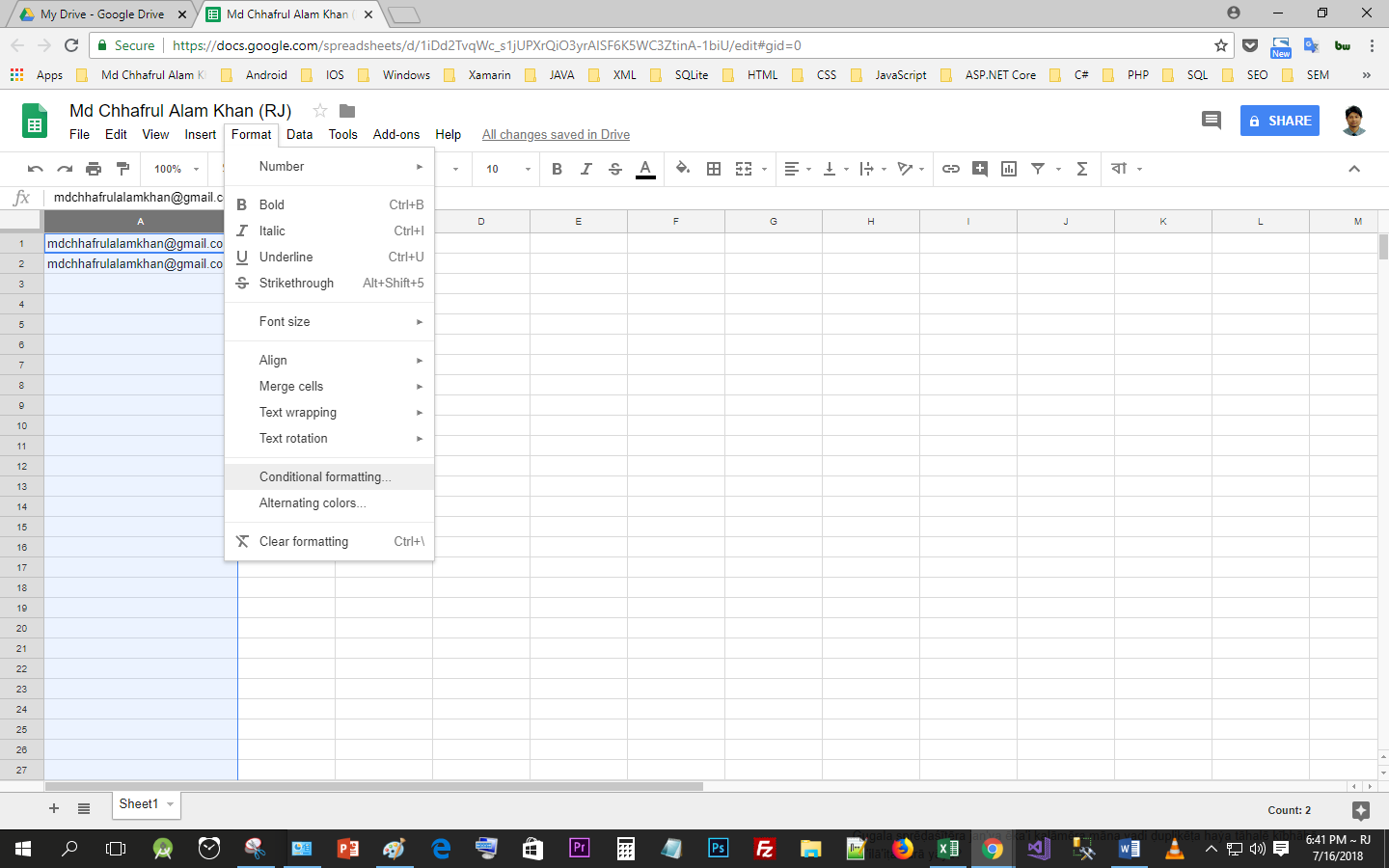 |
| Figure 06 : Google Sheets Conditional formatting |
Step - 04: Click on Format cells if... dropdown button
 |
| Figure 07 : Google Sheets Conditional formatting |
 |
| Figure 08 : Google Sheets Conditional formatting |
 |
| Figure 09 : Google Sheets Conditional formatting |
 |
| Figure 10 : Google Sheets Conditional formatting |
Step - 05: Click on Custom formula is
|
| Figure 11 : Google Sheets Conditional formatting |
 |
| Figure 12 : Google Sheets Conditional formatting |
 |
| Figure 13 : Google Sheets Conditional formatting |
Step - 06: Click on Value or formula text box
 |
| Figure 14 : Google Sheets Conditional formatting |
 |
| Figure 15 : Google Sheets Conditional formatting |
Step - 07: Type this =countif(A:A,A1)>1 formula in the Value or formula text box
 |
| Figure 16 : Google Sheets Conditional formatting |
 |
| Figure 17 : Google Sheets Conditional formatting |
Step - 08: Click on Formatting style dropdown button or leave it Default
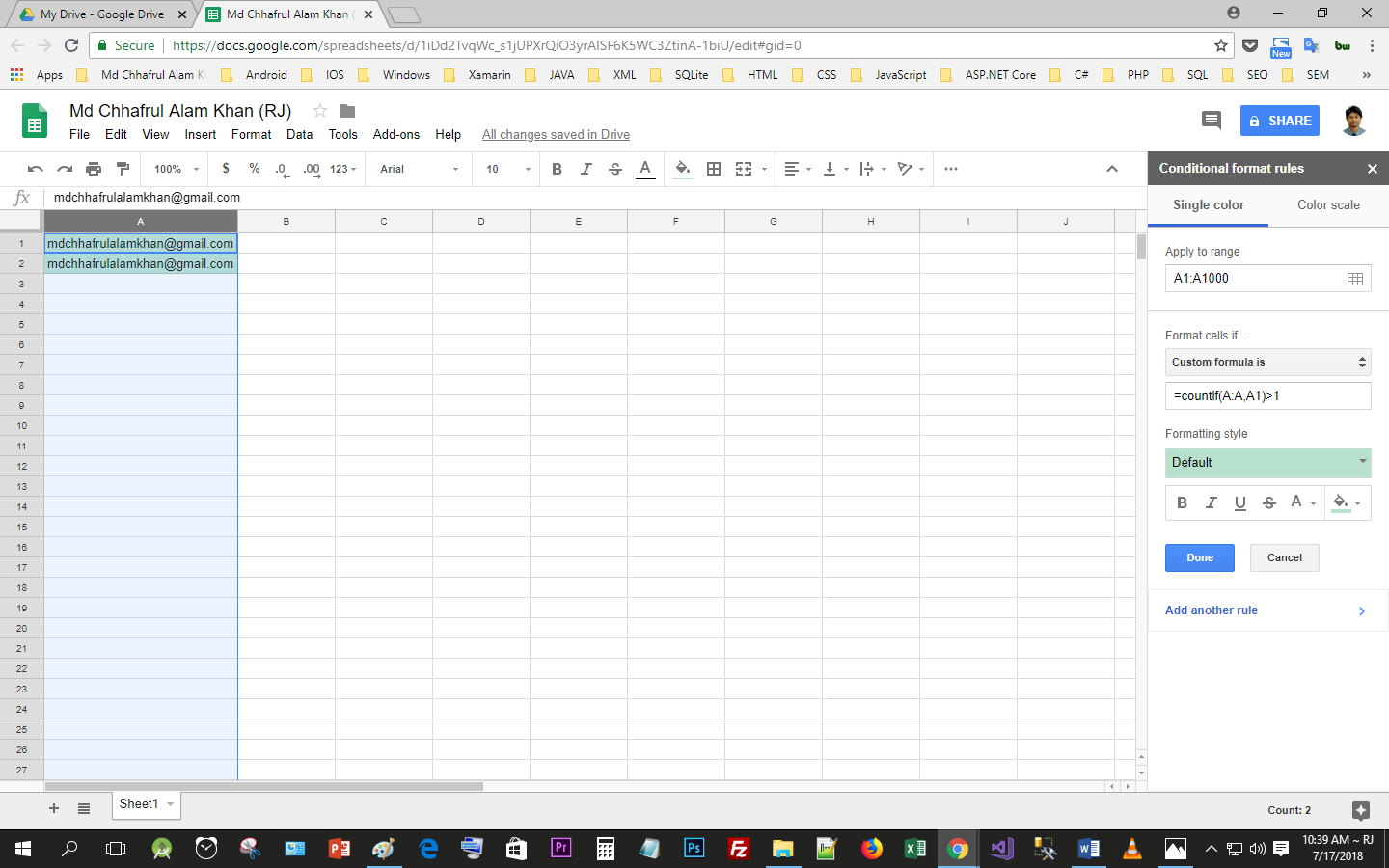 |
| Figure 18 : Google Sheets Conditional formatting |
 |
| Figure 19 : Google Sheets Conditional formatting |
Step - 09: Click on Fill Color icon
 |
| Figure 20 : Google Sheets Conditional formatting |
 |
| Figure 21 : Google Sheets Conditional formatting |
 |
| Figure 22 : Google Sheets Conditional formatting |
|
| Figure 23 : Google Sheets Conditional formatting |
 |
| Figure 24 : Google Sheets Conditional formatting |
 |
| Figure 25 : Google Sheets Conditional formatting |
 |
| Figure 26 : Google Sheets Conditional formatting |
 |
| Figure 27 : Google Sheets Conditional formatting |
Step - 11: Now Click on Done button.
 |
| Figure 28 : Google Sheets Conditional formatting |
 |
| Figure 29 : Google Sheets Conditional formatting |
 |
| Figure 30 : Google Sheets Conditional formatting |
 |
| Figure 31 : Google Sheets Conditional formatting |
 |
| Figure 32 : Google Sheets Conditional formatting |
 |
| Figure 33 : Google Sheets Conditional formatting |
[N. B.: Ensure the range applies to your column e.g. A1:A100.
Now anything you write in the A1:A100 cells will be checked and if there is found any duplicate value then it will be coloured. For multiple columns, use countifs.]
I hope this article will help you in your work.
Thank you!
Comments
Post a Comment